
Tutorial: a contact form on your storefront, step by step
From the Contact form template to a form on a page of your theme, a first submission in the inbox and a Shopify Flow workflow, in about fifteen minutes.
In this tutorial you build a contact form, put it on a page of your theme, send a first submission and let Shopify Flow act on it. It takes about fifteen minutes. The screenshots come from our own demo store, where every form on this page is real.
You need: Workflow Forms installed, a theme that supports app blocks (every theme from the Shopify Theme Store does) and, for the last step, Shopify Flow.
Step 1: create the form from a template
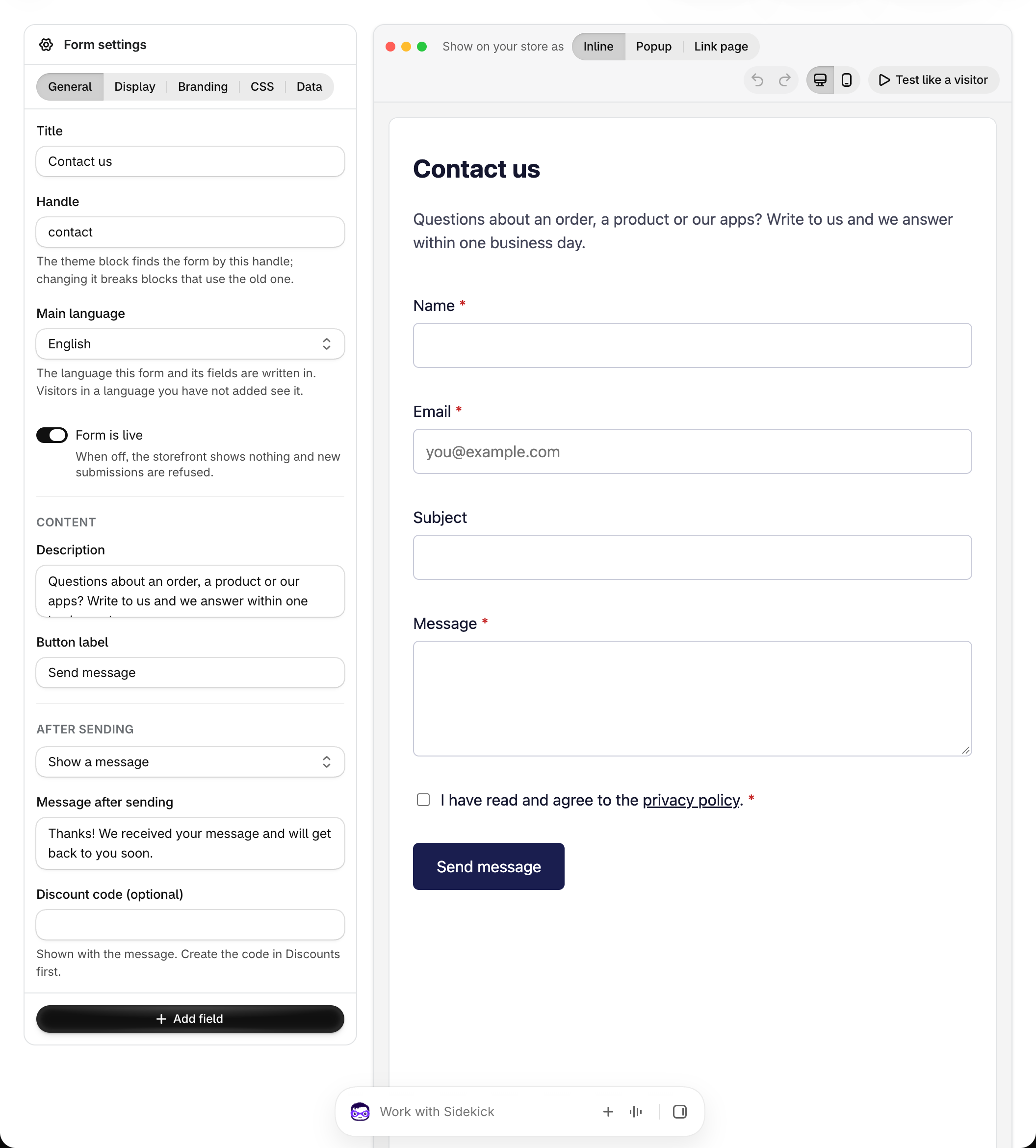
Open Forms and select Create form. Under Start from a template, pick Contact form and select Use this template. The form opens in the editor with five fields from your library: Name, Email, Subject, Message and the privacy consent.
In Form settings on the left:
- Title: what visitors see above the form, for example
Contact us. - Handle: the key the theme block finds the form by, for example
contact. Keep it short, it cannot change later without updating the block. - Description and Button label: the text under the title and on the button.
- After sending: the message visitors see, or a page to send them to.
Select Save. One save stores the form and its fields.
Step 2: give every form your look (once)
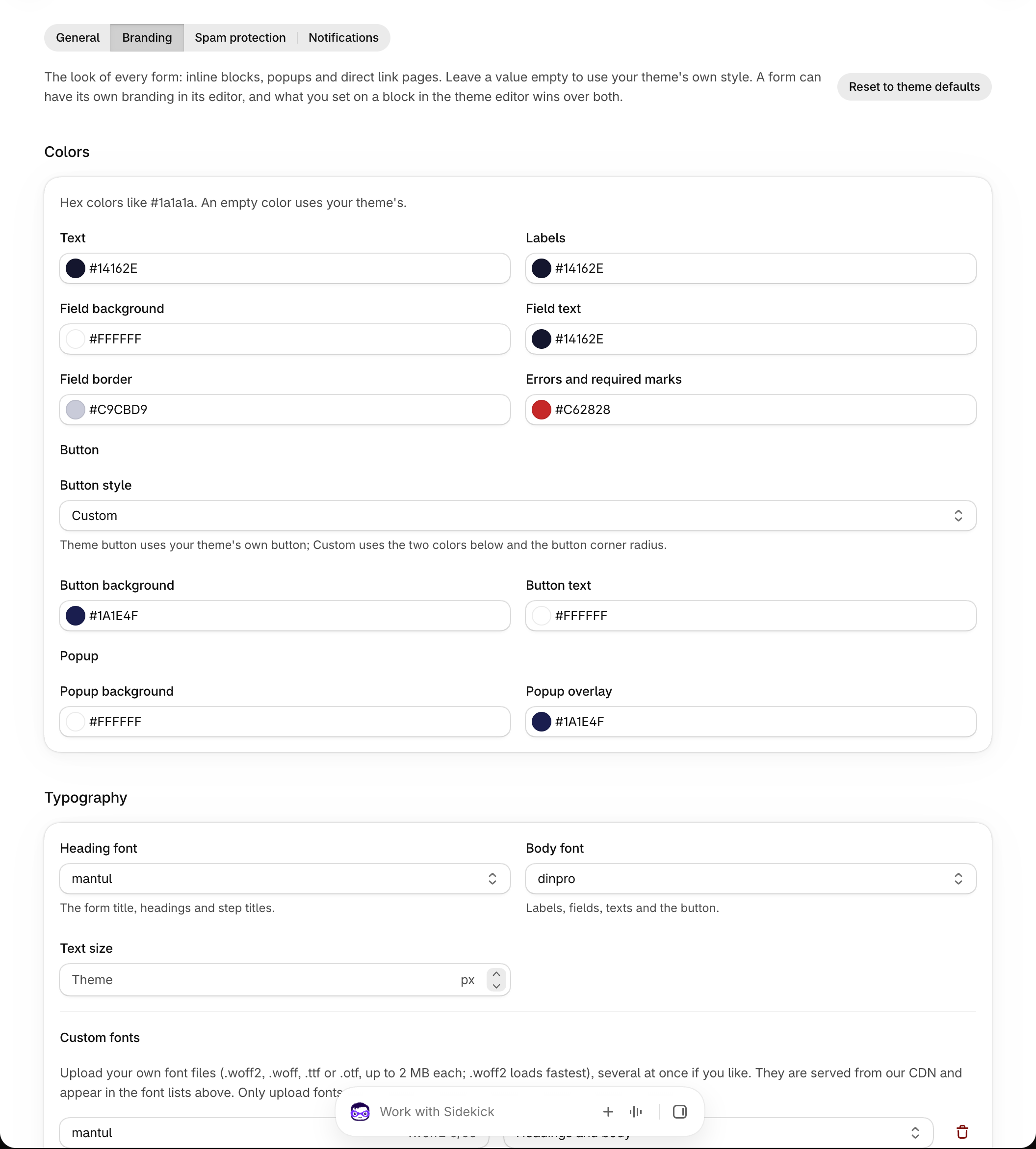
Open Settings > Branding. Colors, the button, the popup, fonts and the shape are set once for every form of your store. Upload your own font files under Custom fonts and they appear in the font lists. The preview on the right shows a sample form with your choices. Select Save.
You can skip this step: a form without branding takes the style of your theme.
Step 3: put the form on a page
- In your Shopify admin open Online Store > Themes and select Customize on your theme.
- Open the page template you want the form on, for example your Contact page, or any page.
- Select Add section and pick Apps (in themes without an Apps section, any section that accepts app blocks works).
- In that section select Add block, open the Apps tab and pick Form from Workflow Forms.
- In the block settings enter the Form handle from step 1, here
contact, and select Save.
The block has its own layout, color and button settings. Leave them empty to use the branding from step 2; a value you fill in wins for this block only. See Add a form to your theme.
Step 4: send a test submission
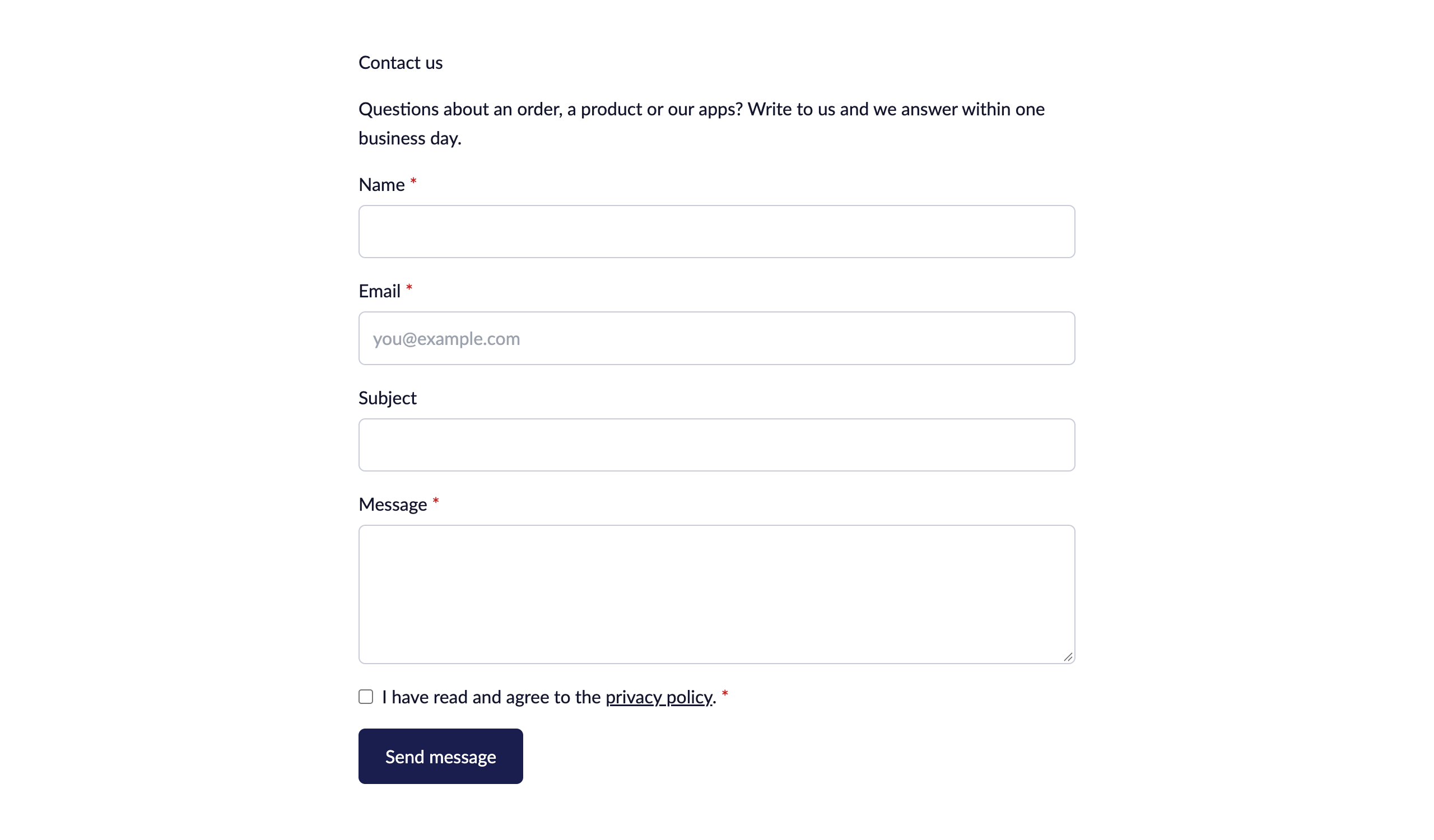
Open the page on your storefront, fill in the form and send it. You see the message from After sending.
Back in the app, open Submissions. The submission is in the inbox with the status New and, when Shopify Flow accepted it, Sent to Flow. Open it to read the answers, mark it as read or archive it. Submissions you make yourself count toward your plan like any other; delete them afterwards if you like.

Step 5: let Shopify Flow act on it
Every stored submission starts the Form submitted trigger in Shopify Flow with the form handle and title, the submission ID, the email, the language, the marketing consent and all answers as JSON. A workflow can email your team, tag the customer or send the answers anywhere else. The quickest start is a ready-made workflow: see Workflow templates. How the trigger works and which variables it carries is on Shopify Flow triggers.
If something does not show
- The page shows no form: check that the handle in the block matches the form's handle exactly, that Form is live is on in the form's settings, and that both the form and the theme are saved.
- The submission says Not sent to Flow: open it, the page says why. Fix the cause and select Send to Flow again. The submission itself is never lost.
- The form looks different from the preview: a theme block setting or the form's own branding wins over the branding in Settings. Empty the block's colors to go back to the branding.