
Tutorial: a newsletter popup, step by step
Turn the Newsletter signup template into a popup that opens after a delay, on scroll or on exit intent, switch on the app embed, and hand every signup to Shopify Flow.
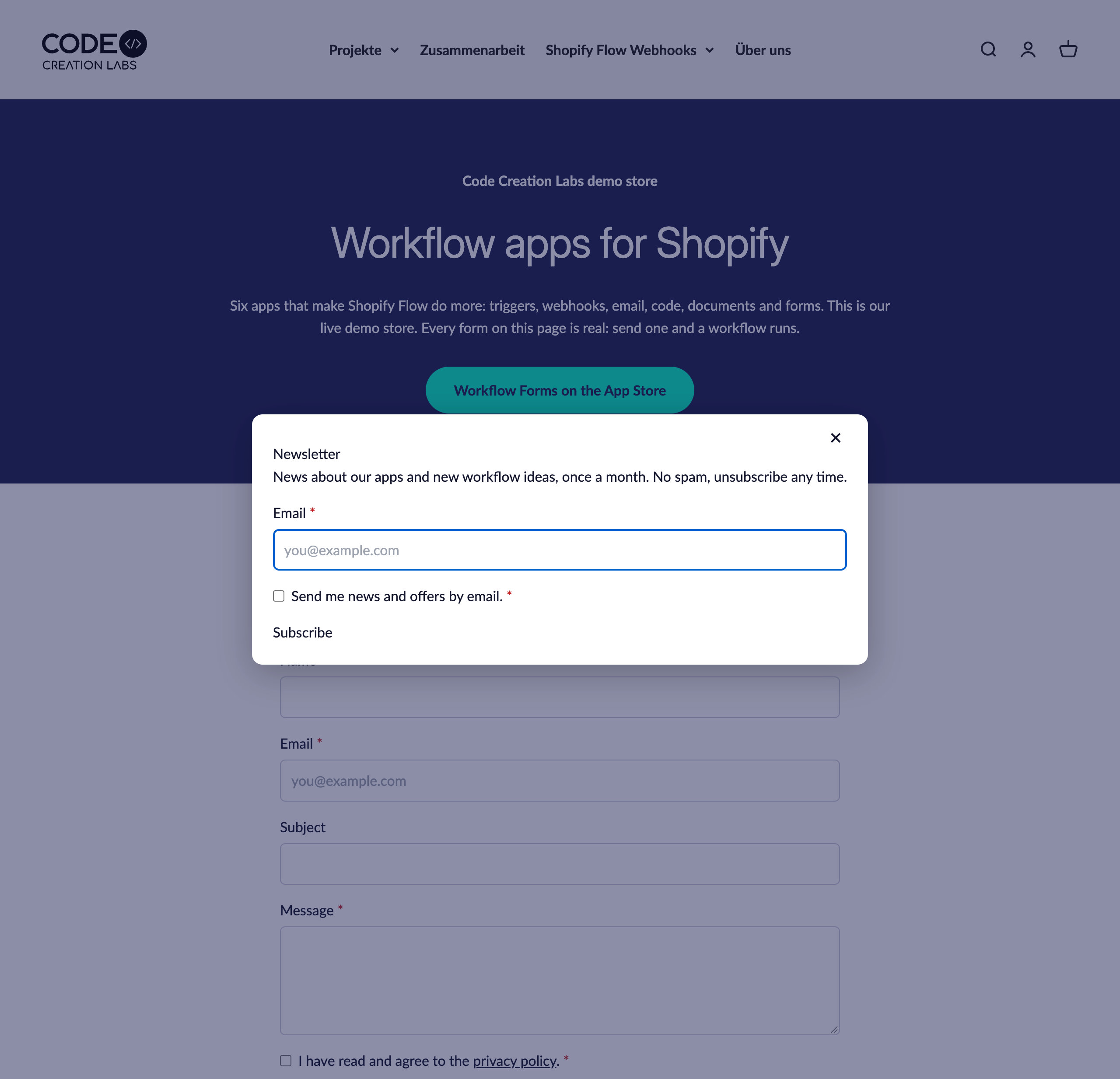
In this tutorial you turn the Newsletter signup template into a popup that opens on its own, switch it on in your theme and hand every signup to Shopify Flow. About ten minutes. The screenshot is from our demo store.
Step 1: create the form
Open Forms, select Create form, pick Newsletter signup and select Use this template. The form has two fields: Email and the Newsletter consent checkbox. The consent is marked as email marketing consent, so a visitor who ticks it arrives in Shopify Flow with Marketing consent: true.
In Form settings, give the form a title such as Newsletter, the handle newsletter, a short description and a button label such as Subscribe. Under After sending, write the message visitors see, for example a hint to confirm the subscription in the email you send them.
Step 2: make it a popup
Above the preview, under Show on your store as, select Popup. The Display tab now holds the popup settings:
- Style: a centered modal or a panel sliding in from the left or right, with or without an overlay, optionally with an image.
- Open: after a number of seconds, after a number of page views, at a scroll depth, or on exit intent when the cursor leaves the page.
- Pages and devices: every page, only the pages you list, or all but those; desktop, mobile or both.
- Frequency: how many days the popup stays closed after a visitor closes it, and whether it stays away after a submission.
- Teaser: a small button in a corner that reopens the popup, before it opens or after it was closed.
For a newsletter a modal after a few seconds, every page, hidden for seven days after closing and for good after a submission, with a teaser after closing, works well. Select Save. The details of every setting are on Popups.
Step 3: switch on the app embed in your theme
Popups need the Popup forms app embed once per theme:
- Open Online Store > Themes and select Customize on your theme.
- Open the App embeds panel (the puzzle piece icon on the left).
- Switch on Popup forms from Workflow Forms and select Save.
The embed has its own color, corner radius and button settings. Leave them empty to use the branding from Settings > Branding.
Step 4: see it on your storefront
Open any page of your store and wait for the delay you chose. The popup opens with your branding. Send a test: the inbox under Submissions shows the signup with the status New and Sent to Flow.
To see the popup again after you closed it, open the page in a private window: the frequency setting remembers the close in the visitor's browser.
Step 5: act on every signup in Shopify Flow
Each signup starts the Form submitted trigger with the email, Marketing consent: true when the box was ticked, and the answers. Two workflows that fit a newsletter:
- Send the visitor a welcome or confirmation email with Workflow Transactional Email: Send a confirmation email when a form is submitted.
- Tell your team about every signup, or subscribe a logged-in customer to email marketing: start from Workflow templates.
The app does not create customers or subscribe them by itself; that is a step in your workflow, so you decide what happens with each signup. See Shopify Flow triggers.
If the popup does not open
- The Popup forms app embed is off, or the theme was not saved after switching it on.
- Form is live is off, or the form is set to Inline or Link page instead of Popup.
- The page is excluded by the Pages setting, or you closed the popup recently: open a private window.
- Another popup app blocks the page: switch it off for a test.