
Tutorial: a wholesale request with steps and conditions, step by step
Build a two-step wholesale request form with your own fields, a question that only shows after a certain answer, and a direct link page you can share with buyers.
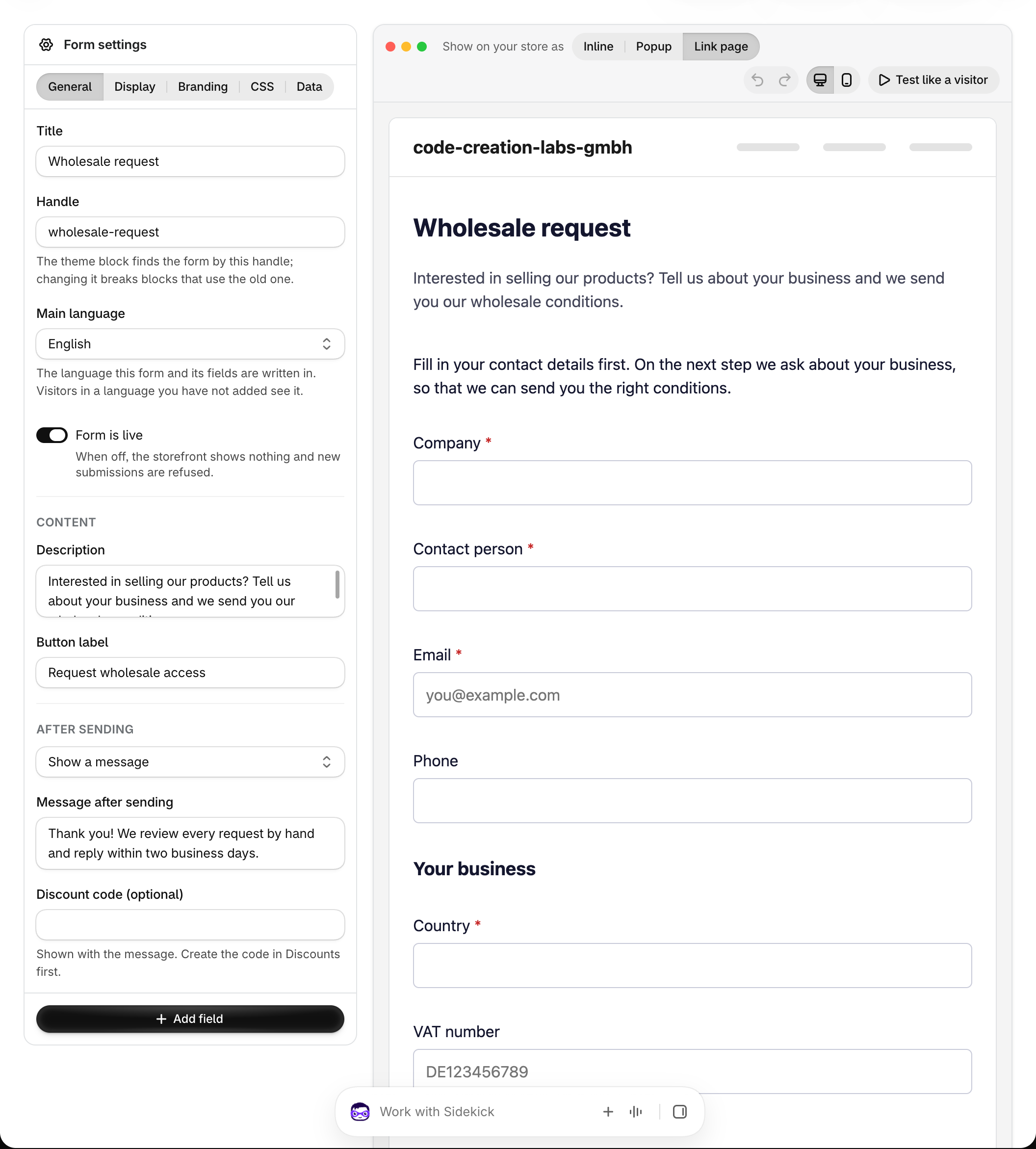
In this tutorial you build a wholesale request form with two steps, your own fields, a question that appears only after a certain answer, and a page of its own that you can link from emails and social posts. About twenty minutes. The screenshot is from our demo store.
Step 1: start from the template
Open Forms, select Create form, pick Wholesale request and select Use this template. You get Company, contact details, VAT number and a message. Give the form a title such as Wholesale request, the handle wholesale-request, a description and a button label such as Request wholesale access.
Step 2: add your own fields
Select Add field at the bottom of the left panel and pick New custom field for each of these:
| Field | Type | Options |
|---|---|---|
| Which products are you interested in? | Checkboxes | Your product lines, one per option |
| Expected monthly volume | Dropdown | A few ranges, for example Up to 100 units, 100 to 500 units, More than 500 units |
| Do you already sell comparable products? | Radio buttons | Yes and No, we are new to this |
| Where do you sell them? | Text |
Each field is saved to your library, so you can reuse it on another form later. Mark the products, volume and reseller questions as required in their panel. See Fields and the field library.
Step 3: show a question only when it applies
Select the field Where do you sell them? in the preview. In its panel open Conditions and add a rule: show this field when Do you already sell comparable products? equals Yes. The rule runs on your storefront and again on our server, so a hidden field is never stored, and the editor refuses a rule that would loop.
Step 4: split the form into steps
Select Add field, open Layout and add a Page break after the contact details. Everything after it becomes step 2 with Next and Back buttons and a progress line. Give the page break a label such as Your business; it is shown as the step title. A paragraph block above the first fields can tell visitors what the second step asks for.
A step that ends up empty because of conditions is skipped automatically.
Step 5: give it a page of its own
Above the preview, under Show on your store as, select Link page. The form gets a page inside your theme at /apps/workflow-forms/f/wholesale-request, with your header and footer. Share the link in an email, a social post or a QR code; no theme block needed. Select Save. See Direct link page.
The same form can also sit on a page as a theme block, or open as a popup: one form, one renderer, three placements.
Step 6: test it like a visitor
Select Test like a visitor above the preview. Fill in step 1, select Next, answer Yes to the reseller question and watch Where do you sell them? appear. Nothing is sent or stored in this mode. Then open the link page on your storefront and send a real request: it lands in Submissions with every answer under its field handle.
Step 7: let Shopify Flow route the request
The Form submitted trigger carries every answer by its handle inside Data, for example volume or products. A workflow can email the request to your sales team, and when the buyer was logged in, tag the customer with wholesale and the products they picked. Start from Workflow templates and see Shopify Flow triggers for the variables.
Good to know
- A field's handle never changes after creation: workflows and conditions depend on it. Rename the label as often as you like.
- A field that other forms use too is changed for this form only when you edit it in this editor; the field page changes it everywhere.
- Conditions can chain: a question that depends on a question that depends on a question. See Conditions and multi-step forms.